
YARNSHAPE GUIDE
Make your first bear in Yarnshape
Open Honey, try a small change, undo it, and keep an editable copy. Then use the current instructions to make four separate pieces and sew them together. You can learn the application steps before picking up a hook.
Keep this guide in a separate tab if helpful. Opening the studio returns to your current work; choose the Bear lesson explicitly in step 1. Honey is an untested design draft. Its preview is schematic, and the face is described in the notes rather than shown as separate pieces. Making the bear assumes basic crochet skills; use Stitch help for unfamiliar stitches.
1. Open and rename the four-piece Honey
In the left sidebar, expand Start or learn, choose Bear, then choose Open lesson. Your current creation stays in My creations (My work on phones). If saving is paused, keep a backup and resolve the saving notice before opening another creation.
Under Your pieces, check for Body, Head, Left ear, and Right ear. An older saved Honey can have a different recipe; keep it if you want it and open a new Bear lesson for these steps.
| Piece | Rounds | Stitch totals |
|---|---|---|
| Body | 19 | Starts at 6; widest 36; finishes at 6 |
| Head | 14 | Starts at 6; widest 30; finishes at 6 |
| Left ear | 2 | 6, then 12 |
| Right ear | 2 | 6, then 12 |
That is 37 rounds across four pieces, with three sewing connections. The checklist calls rounds or rows “courses”; each course here is one round.
At the top of the centre workspace, replace Honey the bear in Creation name with My first Honey. Press Tab or click outside the field to commit the edit. Check the save status beneath Materials & project notes.
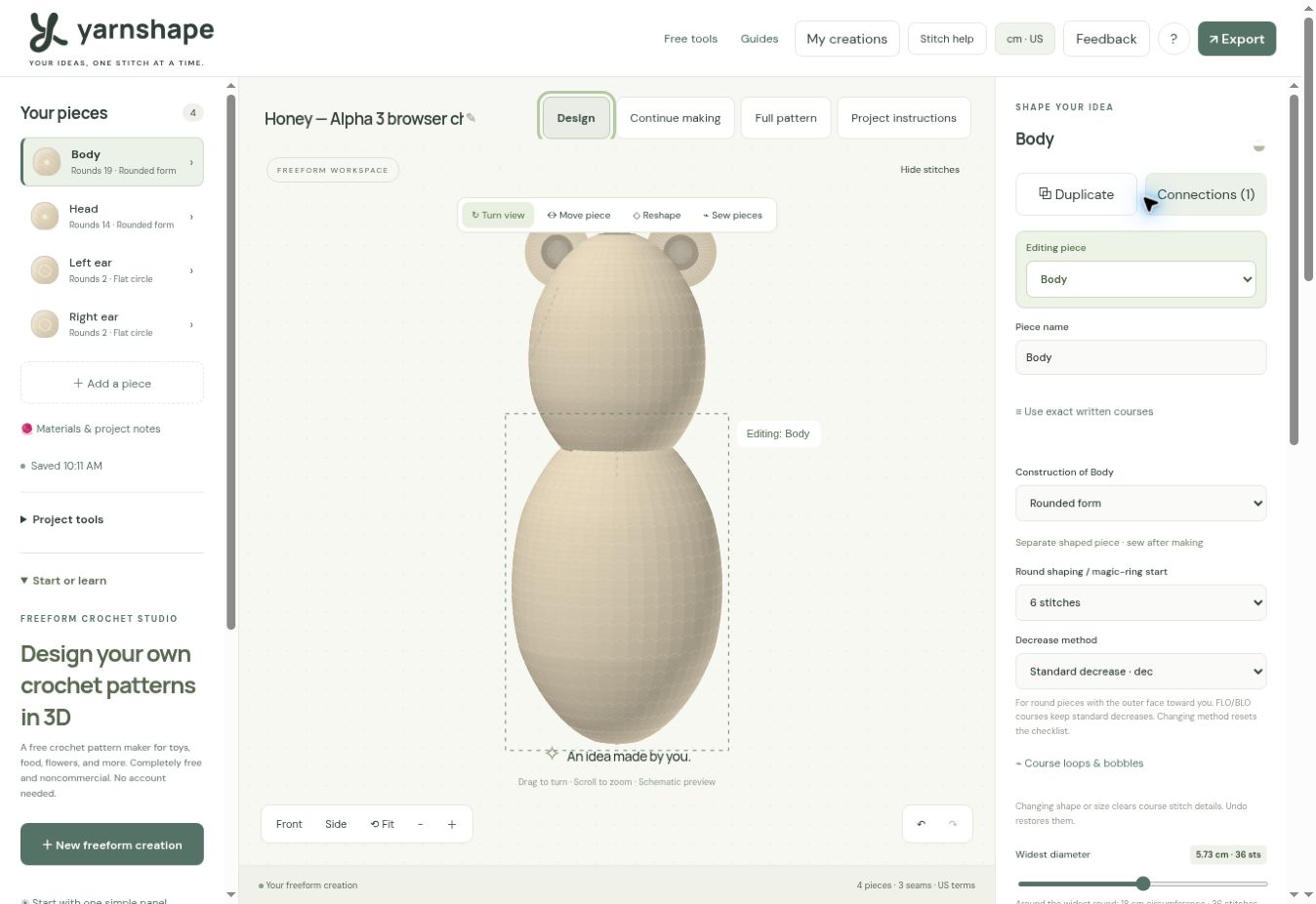
2. Enlarge one ear and inspect the change
Do this exercise before crocheting: construction changes clear course progress. Choose Design, select Left ear in Your pieces, and check that the right-hand settings show Left ear. You can also choose it with Editing piece.
Find Circle diameter. Move its slider one step from 12 sts to 18 sts; focusing it and pressing Right Arrow is another way to move one step. Use Front, Side, and Fit beneath the preview to inspect the arrangement.
Choose Full pattern and find Left ear. It now has three rounds ending at 18 stitches. Right ear still has two rounds ending at 12. The project total is now 38 rounds. Each ear remains a separate flat circle.
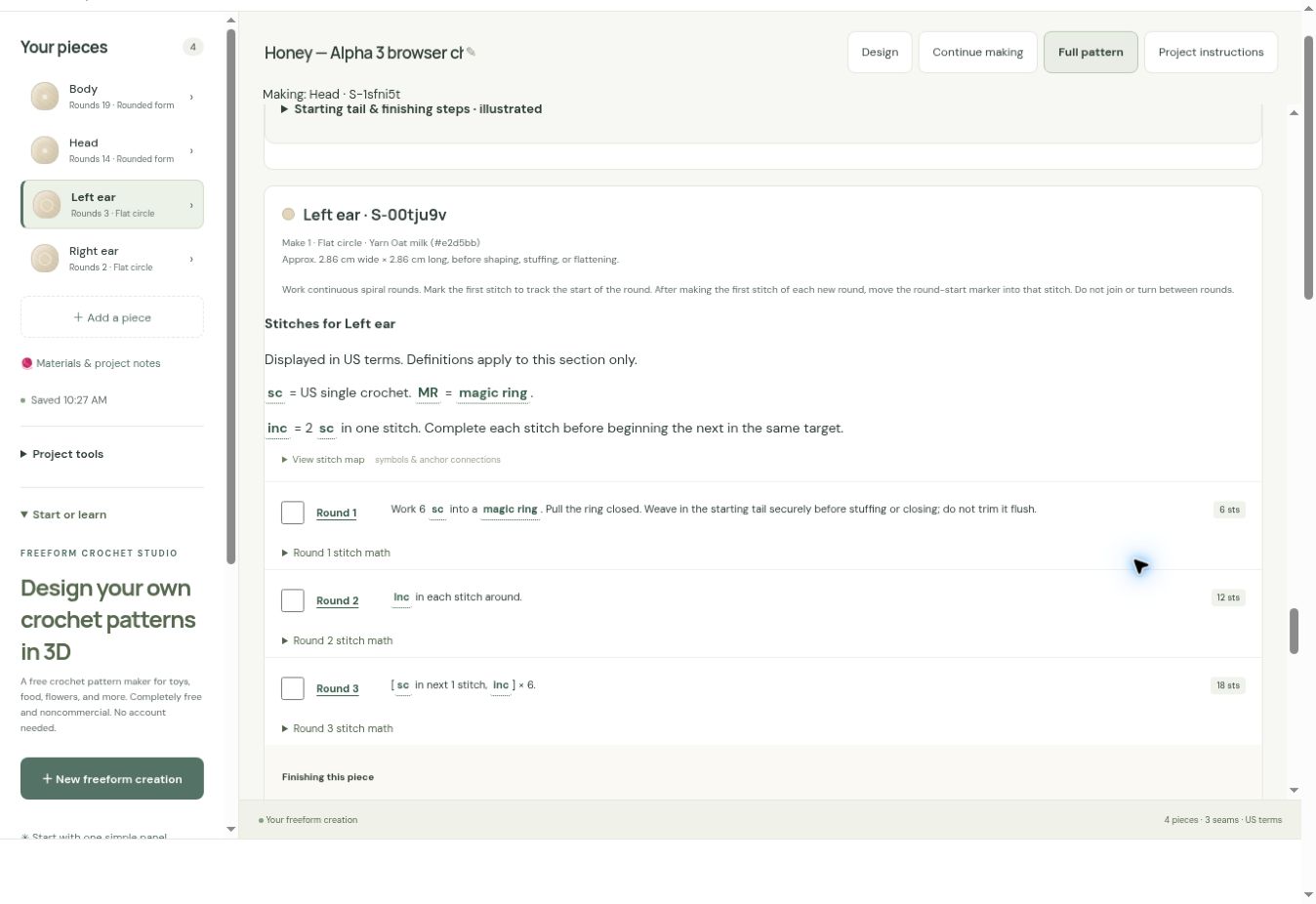
3. Undo the design edit
Return to Design and choose the curved Undo arrow beneath the preview before making another edit. Check that Left ear is back to 12 sts and two rounds; the total returns to 37 rounds. This is the design Undo control. Undo last finish in Continue making reverses a checklist tick.
The remaining steps follow this restored Honey. If you keep a different design, follow its current pattern and check the assembly on a sample.
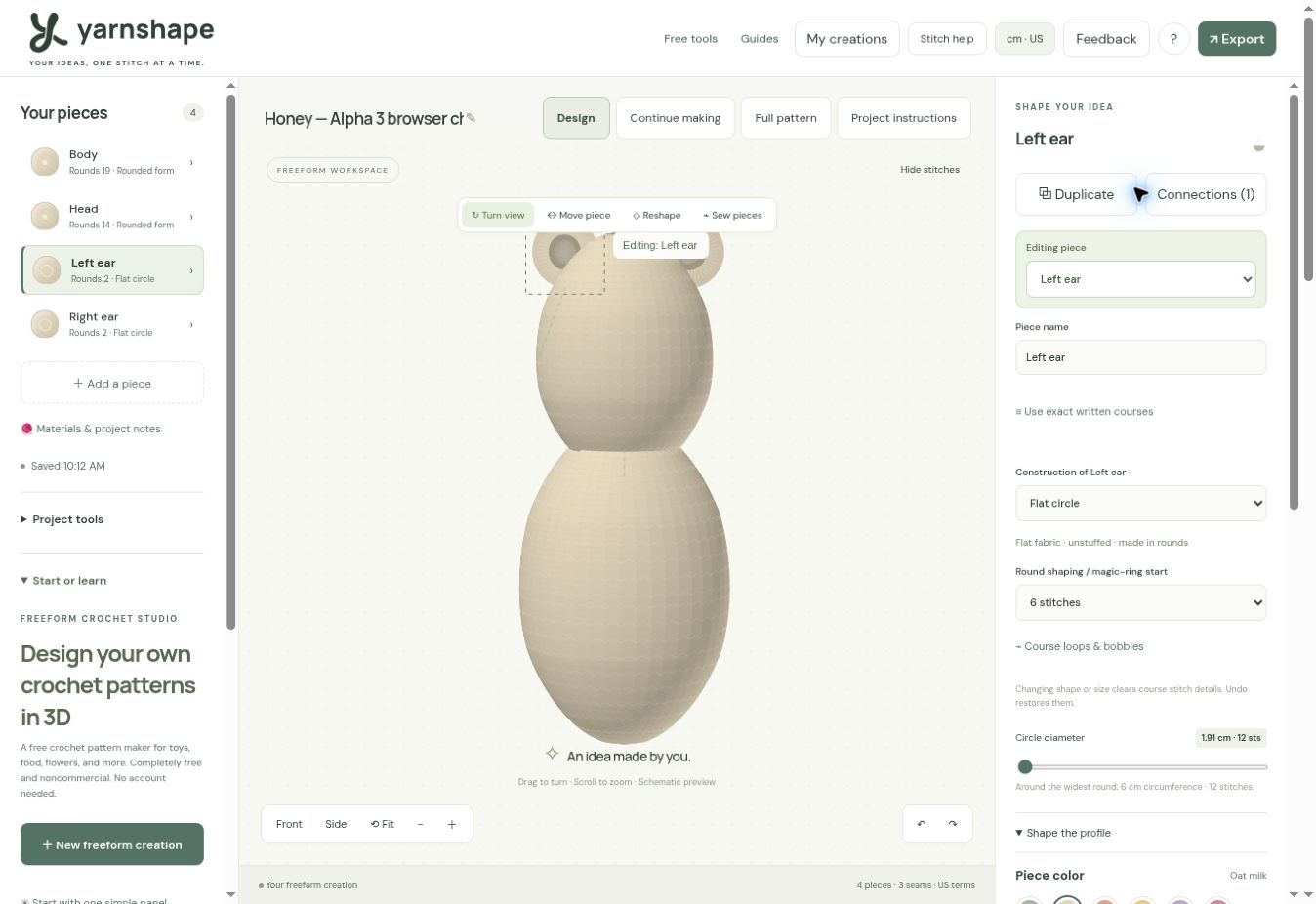
4. Save and reopen your creation
Most design and checklist changes save as you make them. Dialogs with a Save button need that button. Check for Saved… in the sidebar. If you see Temporary changes or Saving paused, keep the tab open, preserve a backup using step 5, and use the saving or recovery notice before relying on a reload.
When saving is working, open My creations, find My first Honey, and choose Open. Check the name and all four pieces. You can also reload the same address in the same browser after keeping a backup. Saved creations belong to this browser and website address; staging and the main website have separate saved work.
5. Keep an editable backup
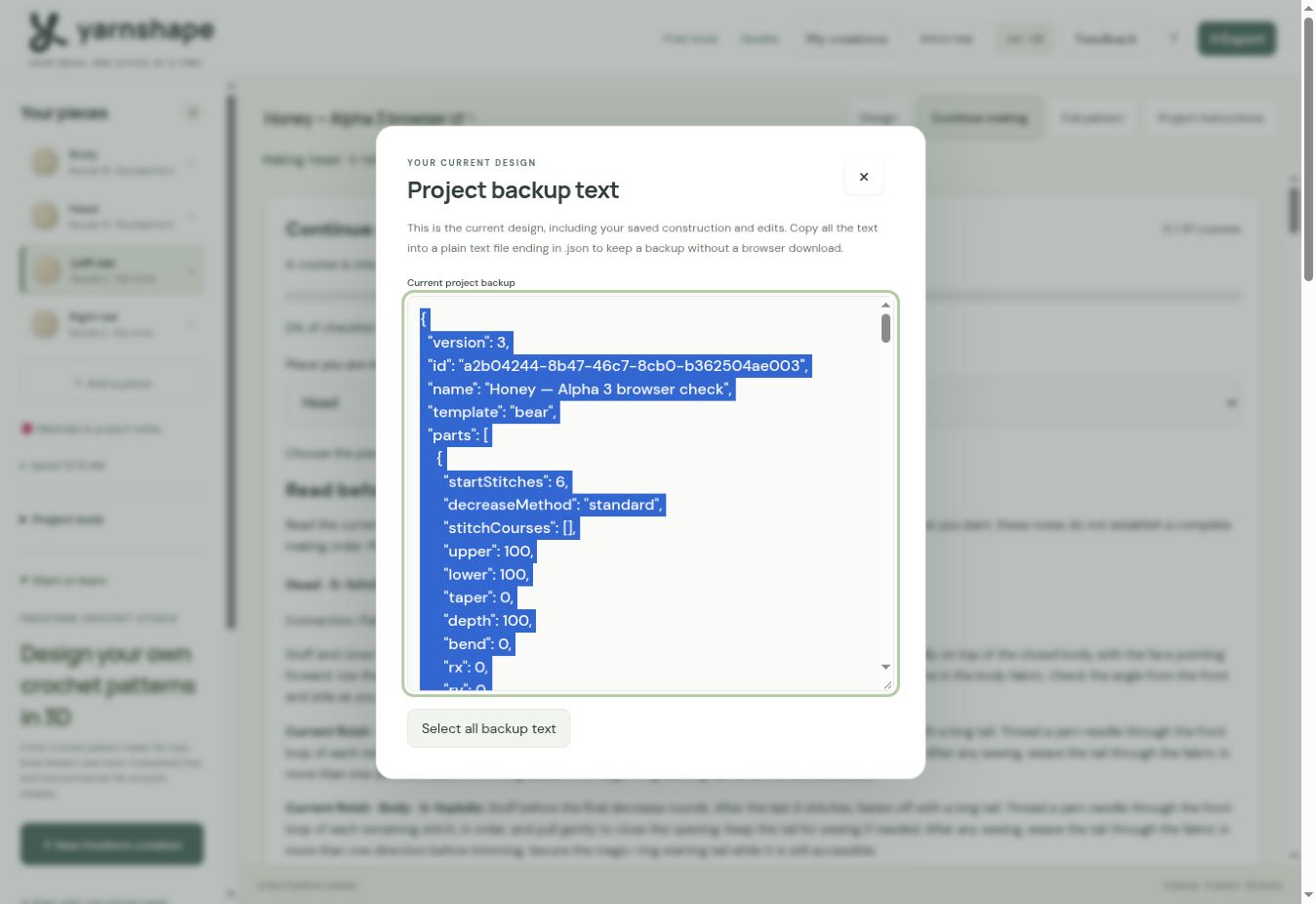
Choose Export → View backup text → Select all backup text. Copy the whole selection into a plain-text file such as my-first-honey.json. A picture or PDF does not replace this editable copy.
To restore it, choose My creations → Paste backup text, paste the complete file into Backup text, then choose Import pasted backup. On success, the dialog closes and a confirmation appears. Check the imported name and pieces. If an error appears, keep the original backup while resolving it. You can also use the JSON download options in Export.
6. Read the full pattern and prepare your materials
Choose Full pattern. Read all four sections, their starting and finishing directions, Sewing plan, and My assembly notes before starting. The preview and stitch maps show approximate structure; follow the written sequence for stitch placement.
Use the top button showing something like cm · US to open Measurements & terms, then Save preferences. This guide uses US terms: sc is single crochet; the UK display calls the same stitch dc. Terms change labels while preserving stitch counts.
In Design, open Your yarn & gauge, enter your intended yarn, hook size, and measured swatch counts, then choose Save yarn & gauge. Gauge changes estimated size without adding stitches. The demo values are examples. Use Materials & project notes to record yarn and colour information, assign it to the pieces, and choose Save yarn & piece assignments.
7. Make and track one round at a time
All four pieces begin with a magic ring and use continuous spiral rounds. The ears are flat circles worked in rounds, rather than panels worked in turned rows. Move the round-start marker into the first stitch of each new round. Read each piece’s Stitches for… key and the total after each round.
Choose Continue making and set Piece you are making to Body. Design selection and making selection are independent. Crochet and count the round, then choose Finish Round 1 only when it is complete. The button advances to the next unfinished round. If you are just exploring the software, leave the checkboxes unticked.
For unchanged Honey, begin stuffing Body before Round 15 and Head before Round 11, while the openings are still accessible and before the first decrease round. The current generated instructions place the stuffing checkpoint before that round in Continue making, Full pattern, and print. Secure the magic-ring starting tail while you can reach it.
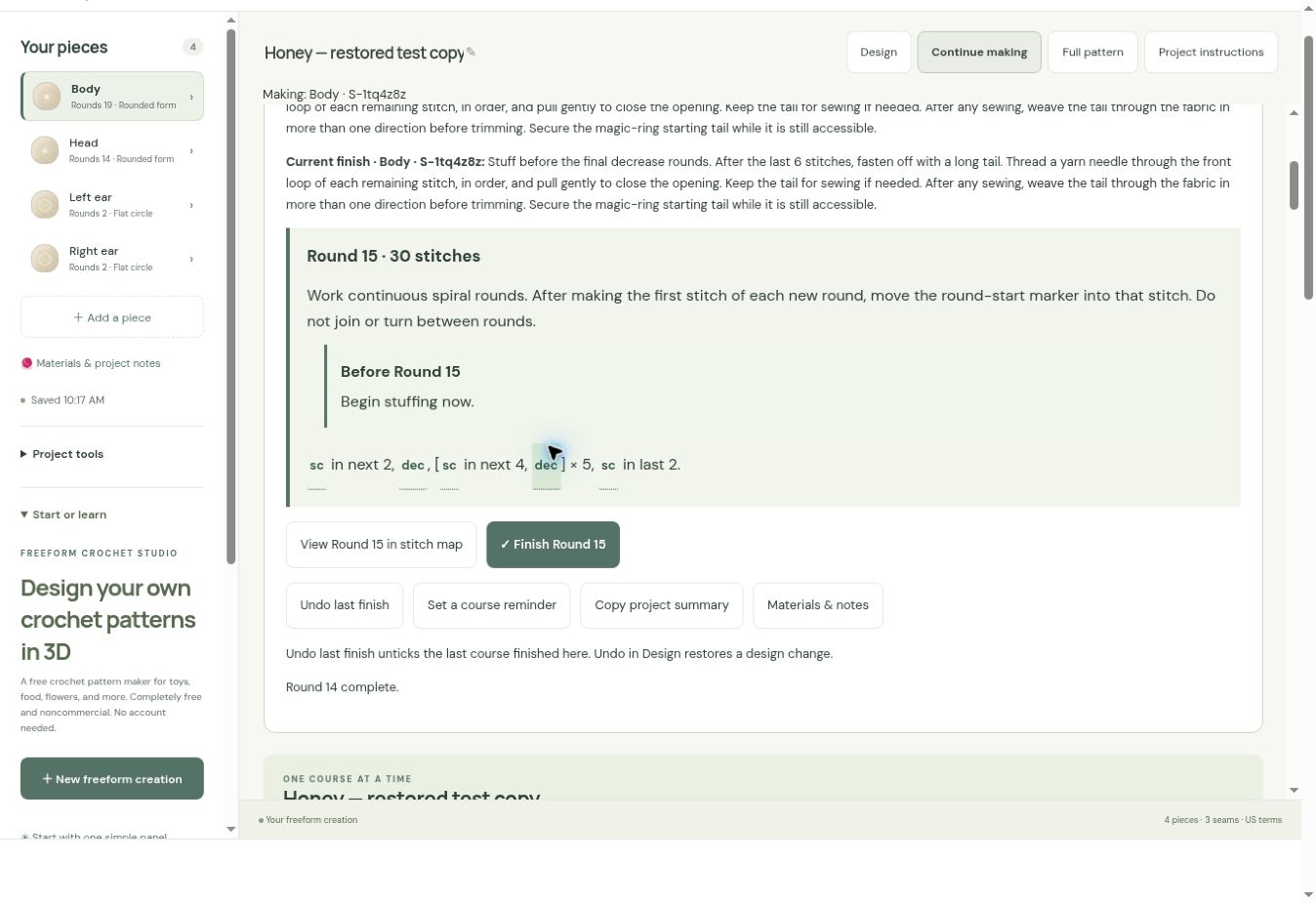
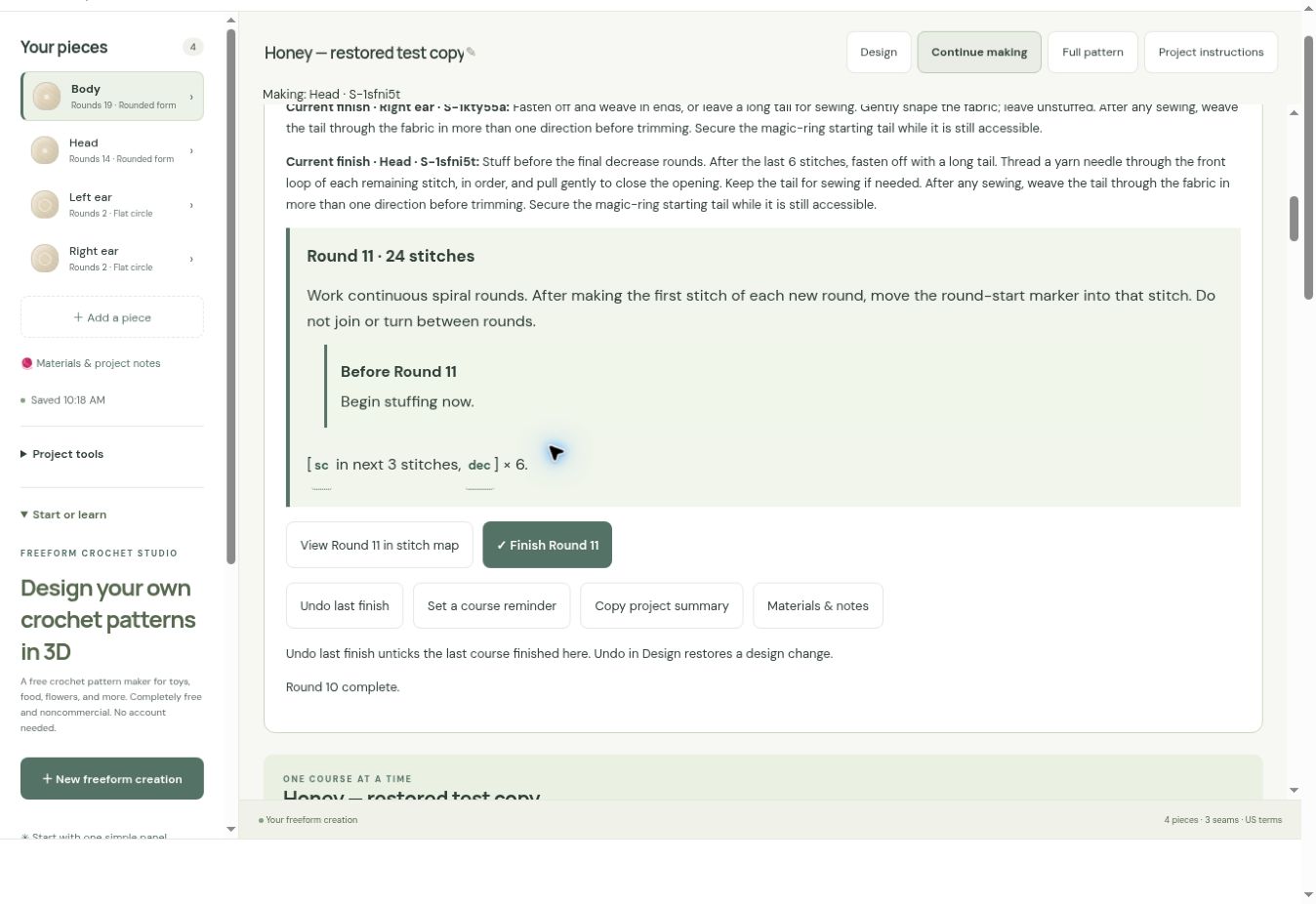
View Round … in stitch map helps inspect a round without marking it finished. Undo last finish reverses a mistaken tick during the same visit; for an older mistake, untick that round in Full pattern. Continue making returns to the first unfinished round of the selected piece.
8. Finish each separate piece
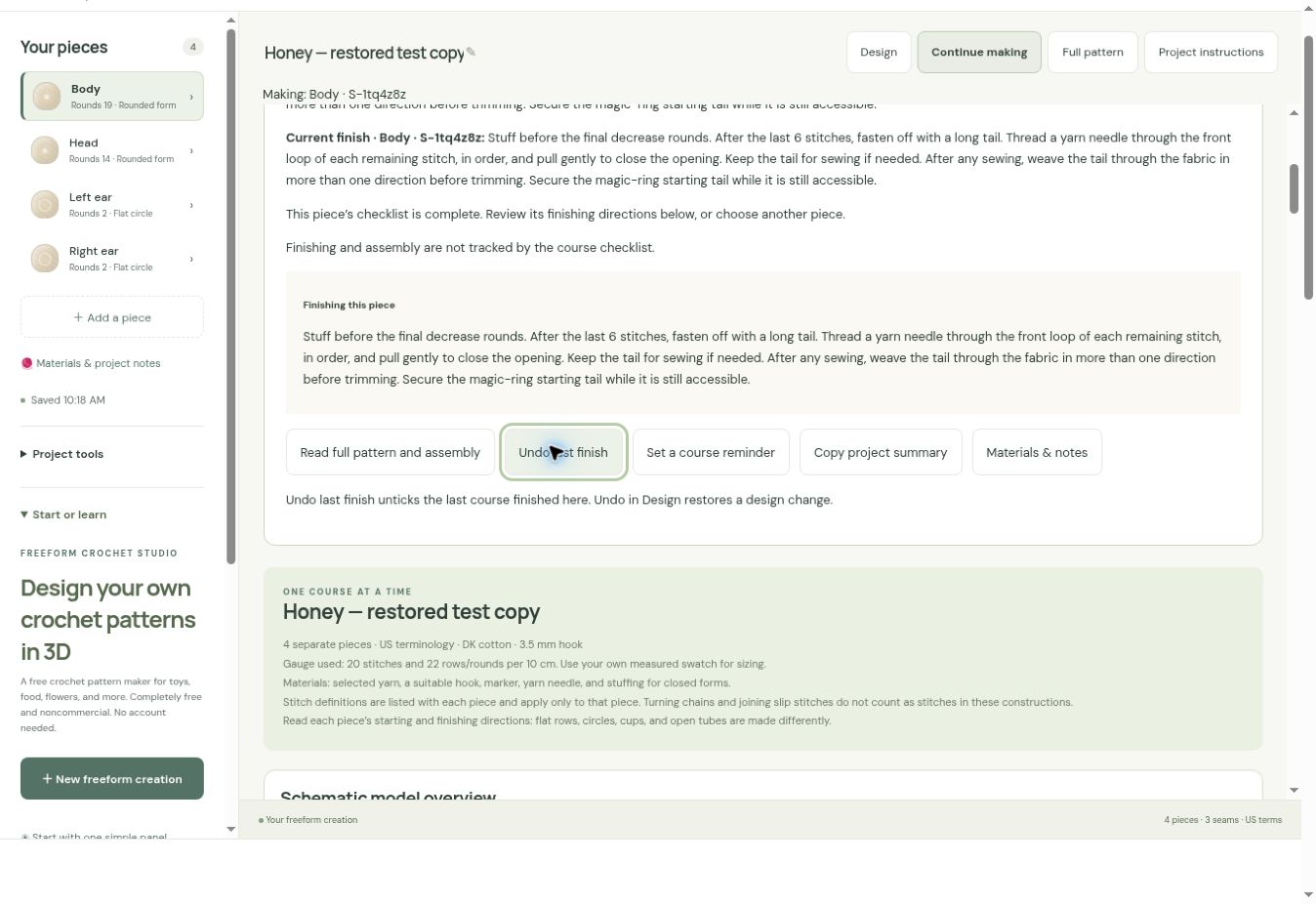
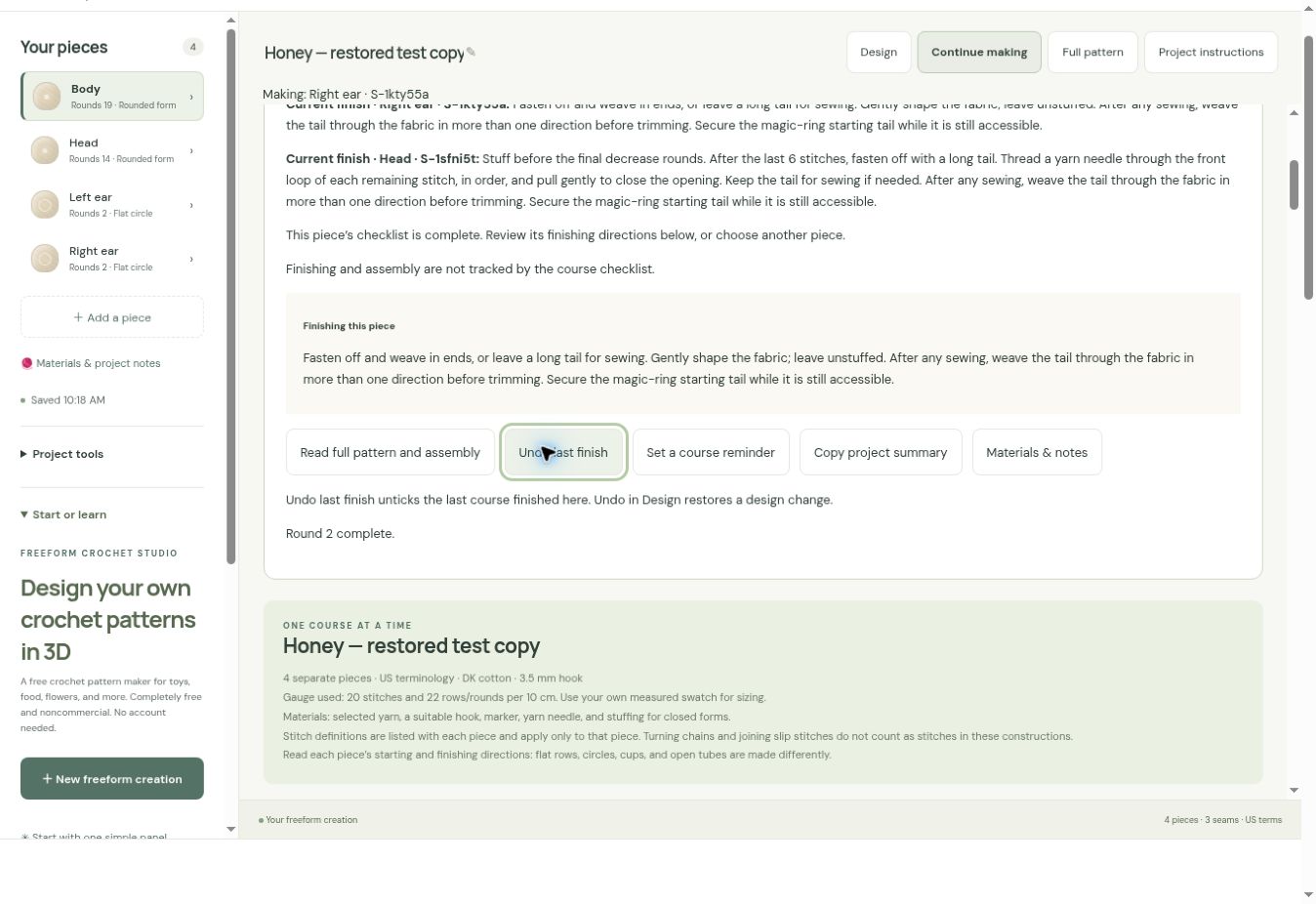
After the final round, Continue making says This piece’s checklist is complete. Its Finishing this piece card gives the current finish for that piece. Completing the checklist records rounds; it does not record stuffing, embroidery, closure, or sewing as complete.
Body and Head each end with six stitches. Follow their gathering closure: fasten off with a long tail, thread a yarn needle through the front loop of each remaining stitch in order, then pull gently to close. Keep the sewing tail as directed. Read finishing before starting so that stuffing and securing the starting tail happen while the inside is accessible.
Change Piece you are making to Head, Left ear, and Right ear as you make them. Keep each ear flat and unstuffed and leave a long attachment tail. Do not gather the ear’s outer edge closed. Return to Full pattern for the complete finishing and assembly directions whenever needed.
9. Pin, embroider, sew, and record the assembly
In Full pattern, read Sewing plan and My assembly notes. The three connections are Head to Body and each ear to Head, using Flat or closed piece to a surface. Follow their saved notes:
- Pin the closed head centrally on the closed body. Pin both flat ears to the upper sides of the head, facing forward. Left and right mean the sides as you look at the face; match their height and angle.
- While pinned, choose the front. Mark two eyes, a nose between and below them, and a mouth below the nose. Embroider the face and secure its ends before sewing the head to the body.
- Use the head’s long tail to sew around the contact area, alternating short stitches in head and body fabric. Check the angle from front and side.
- Sew only each ear’s lower arc to the head, leaving its upper edge free. Check the attachments, then secure and weave in the remaining tails as directed.
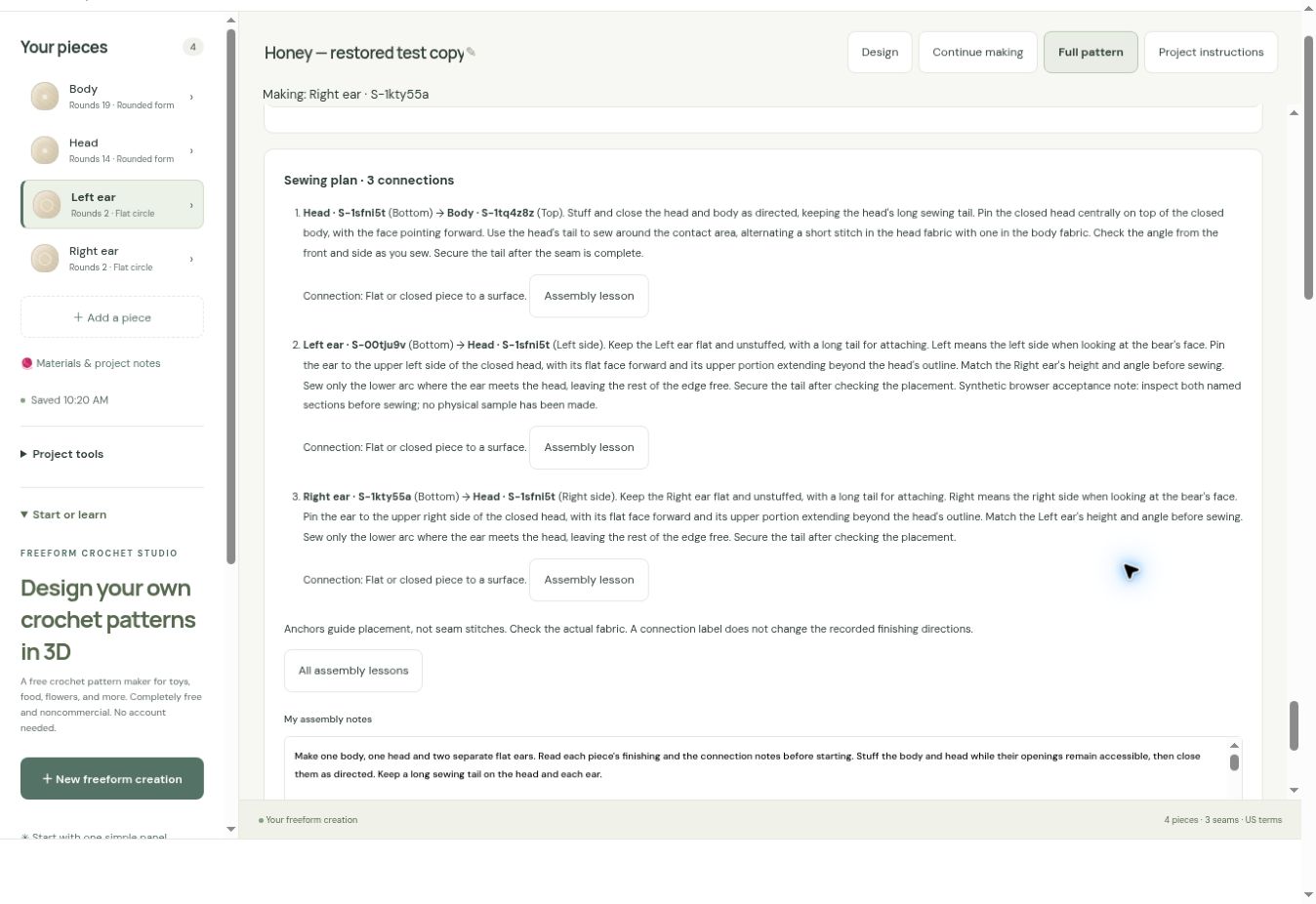
Named preview anchors guide placement; they do not specify seam stitch numbers, seam length, strength, or fit. Establish those details on your sample. Assembly lesson opens help for a connection’s method.
For a connection-specific observation, return to Design, select its piece, and open Sew to another piece → Existing connections → Edit connection note. Edit Note, choose Save connection note, then check it in Full pattern. For overall assembly order, edit My assembly notes beneath the Sewing plan and click outside the text area to save. These notes are separate from the Project instructions editor.
Record yarn, hook, measured dimensions, stuffing, placement, and any changes that worked on the actual sample in Materials & project notes. Keep an updated editable backup. Use Export → Print / save PDF for the current complete instructions, and check all four piece sections, finishing directions, connections, and notes in the print preview.
If a control is hard to find
- Settings disappeared: choose Design. Pattern reading hides the settings panel.
- A panel will not scroll: on a computer, place the pointer over the sidebar, centre pane, or settings you want to scroll. On narrow screens, settings move below the workspace.
- Making shows a different piece: change Piece you are making; selecting a piece in Design does not change it.
- Saving is paused: preserve your backup and use Keep a backup & review options. Clearing site data can remove creations.